Batch Job Chains, Visualised (Coming in ReportMagic 4.1)
When you run a schedule in ReportMagic, whether you trigger it manually or it fires as part of a chain - the platform spins up a batch job. That batch job is the unit that does the real work: orchestrating all the report jobs defined on the schedule, tracking their results, and (when chaining is enabled) triggering the next schedule’s batch job. Even though we talk about “schedules” at a high level, it’s these batch jobs that carry the load.
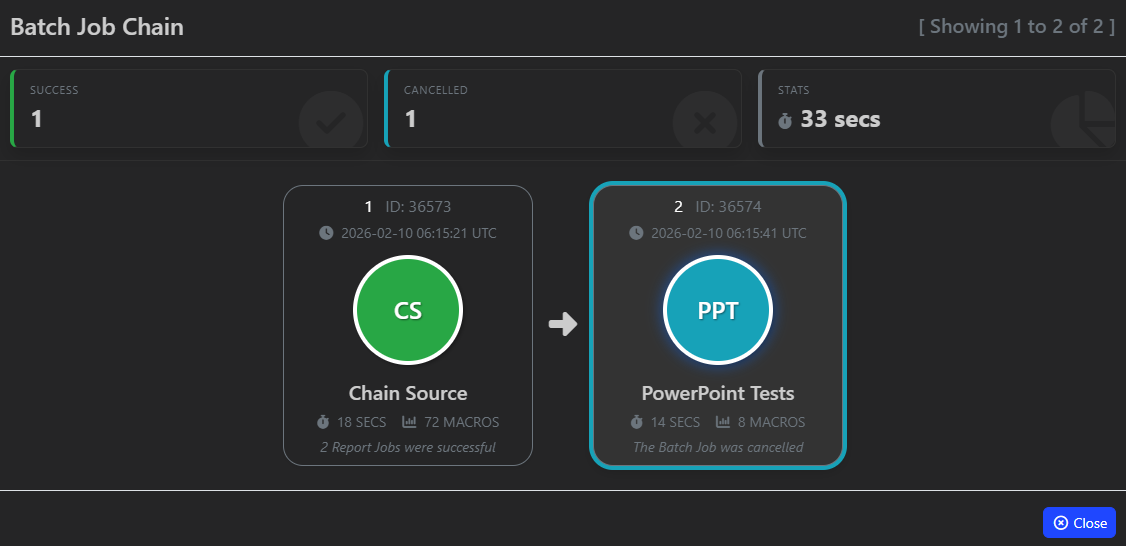
Version 4.1 introduces a brand-new visual chain viewer so you can follow those batch jobs end to end. Open any chain-aware batch job and instantly see what ran before it, what’s running now, and what will run next.
Why it helps
- Spot failures, warnings, cancellations, or blocked steps instantly
- Understand why a chain stopped before digging into logs
- Monitor long-running chains as they update in real time
Quick tour
- Head to the Batch Jobs table (per-schedule or All Batch Jobs)
- Look for the new View Chain button beside any job that belongs to a chain
- Click it and you’ll see:
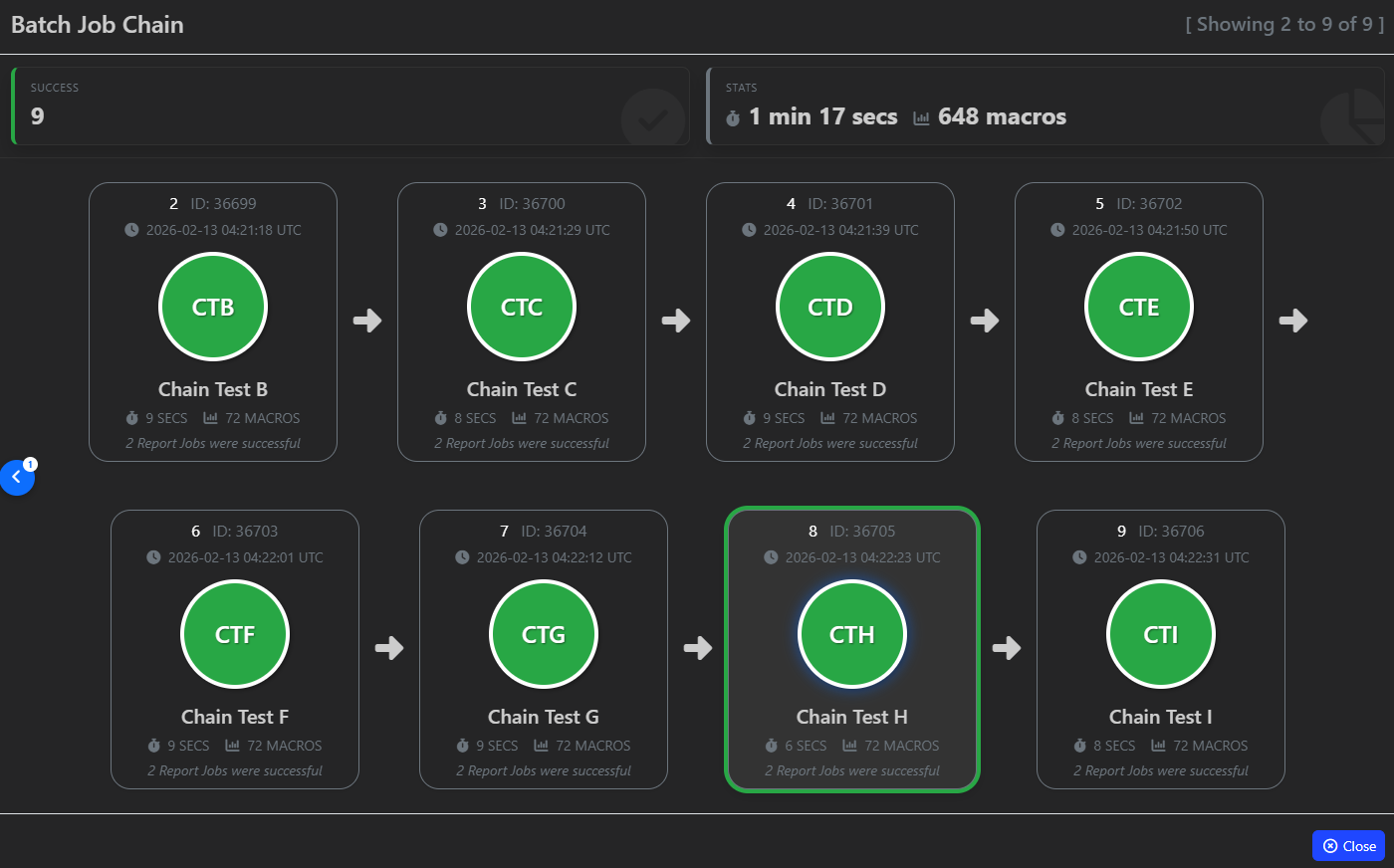
- Every linked batch job in order, colour-coded by result
- Start times, duration, macro counts, and messages
- Live status updates as the status changes and new chains are added
- A “Next Up” tile showing what will run next - or why it won’t
Floating navigation buttons help with long chains, while visual cues like glowing borders (running) and gentle shakes (blocked) highlight what needs attention.
Under the hood
Each batch job now stores a lightweight chain snapshot (which job triggered it, which job it will trigger next, schedule details, etc.). When chained schedules run, we update the snapshots and broadcast notifications so the UI always reflects reality—whether the chain was triggered automatically or manually.
Flow examples
-
Simple chain (A → B → C)
A completes with Success → triggers B; B completes → triggers C; the visualisation shows the whole flow with bidirectional links. -
Chain blocked by failure
A succeeds, B fails with System Error, so C never starts; the “Next Up” tile marks C as BLOCKED. -
Standalone run of a chained schedule
You trigger B manually even though it’s usually part of A’s chain. The viewer still shows the partial chain (B → C) without A. -
Cancellation mid-chain
A succeeds, B is cancelled by a user, so C is blocked. The viewer immediately shows B as Cancelled and C as BLOCKED.
Try it when 4.1 lands
Questions or ideas? Drop them below—and if you capture a great screenshot, we’d love to see it!