Re-Run Report Jobs: Granular Control Over Your Report Execution
We’re excited to introduce the ability to re-run Report Jobs - a powerful new capability in ReportMagic 4.1 that gives you granular control over retrying individual Report Jobs from a completed batch. No more re-running an entire Schedule just because a handful of reports failed. Pick exactly the ones you need, tweak the options, and get them queued in seconds.
The Problem
Previously, when a Report Job failed - whether due to a macro error, a system hiccup, or a worker being stopped - the only option was to re-run the entire Schedule. For a batch of 200 reports where only 3 failed, that meant re-generating all 200. That wastes time, consumes resources, and clutters your output folders with duplicate documents.
The Solution
The re-run feature lets you select specific Report Jobs from any completed Batch Job and queue them as a brand-new batch. The original report’s context - its variables, batch variable, input document, and output formats - is faithfully preserved so the re-run produces exactly the same result as the original would have, but this time (hopefully!) without the error.
How It Works
1. Select What to Re-Run
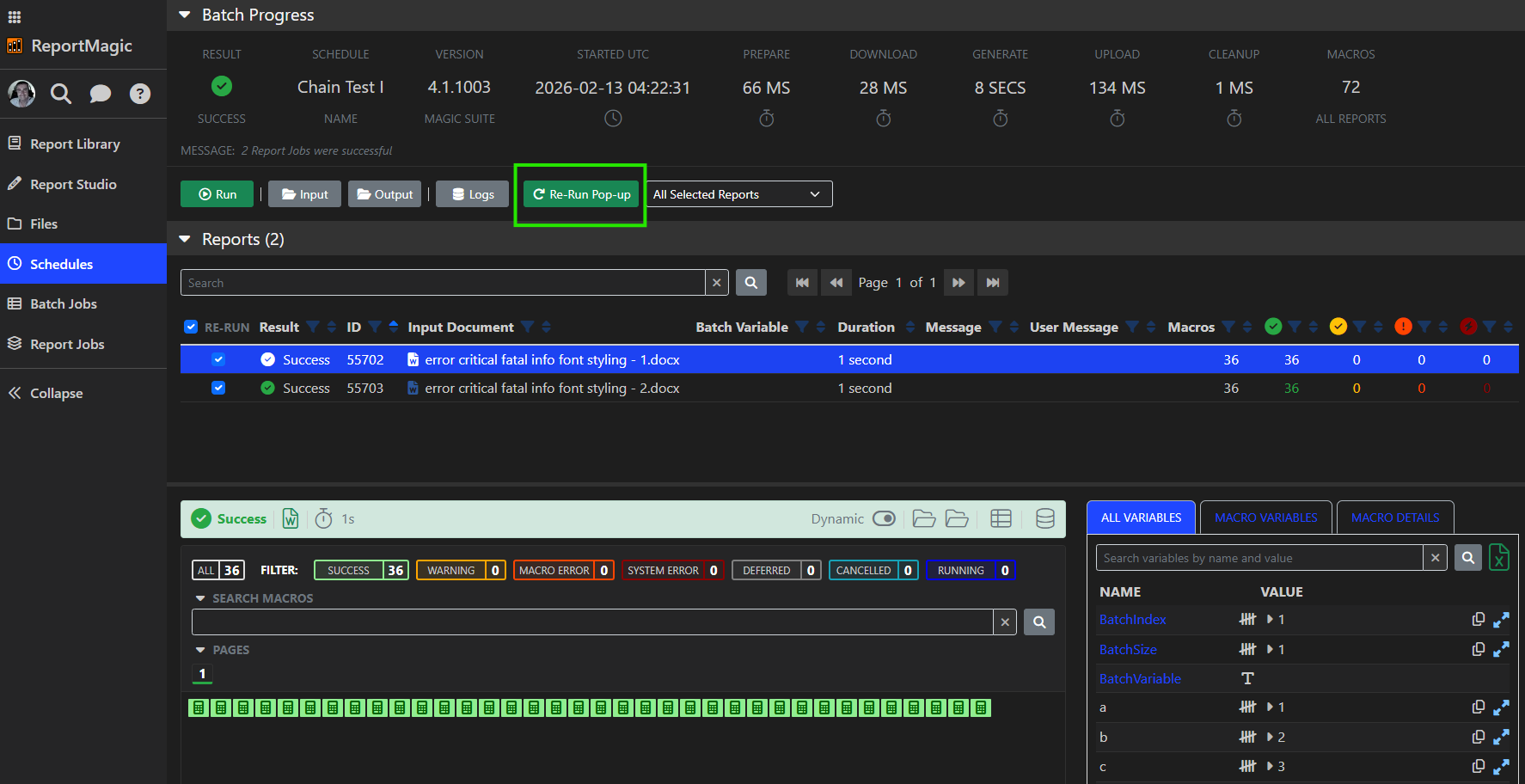
From the Batch Progress page, you’ll find a new Re-Run button with three convenient modes:
- Selected - Manually tick individual Report Jobs from the table
- All Failed - Automatically selects every job that ended in a Macro Error or System Error
- All Stopped - Picks up every job that was stopped before completion
- All Worker Stopped - Picks up every job that was stopped (a worker died) before completion
- All Cancelled - Picks up every job that was cancelled before completion
A header checkbox lets you toggle all visible rows on the current page at once.
2. Customise Your Options
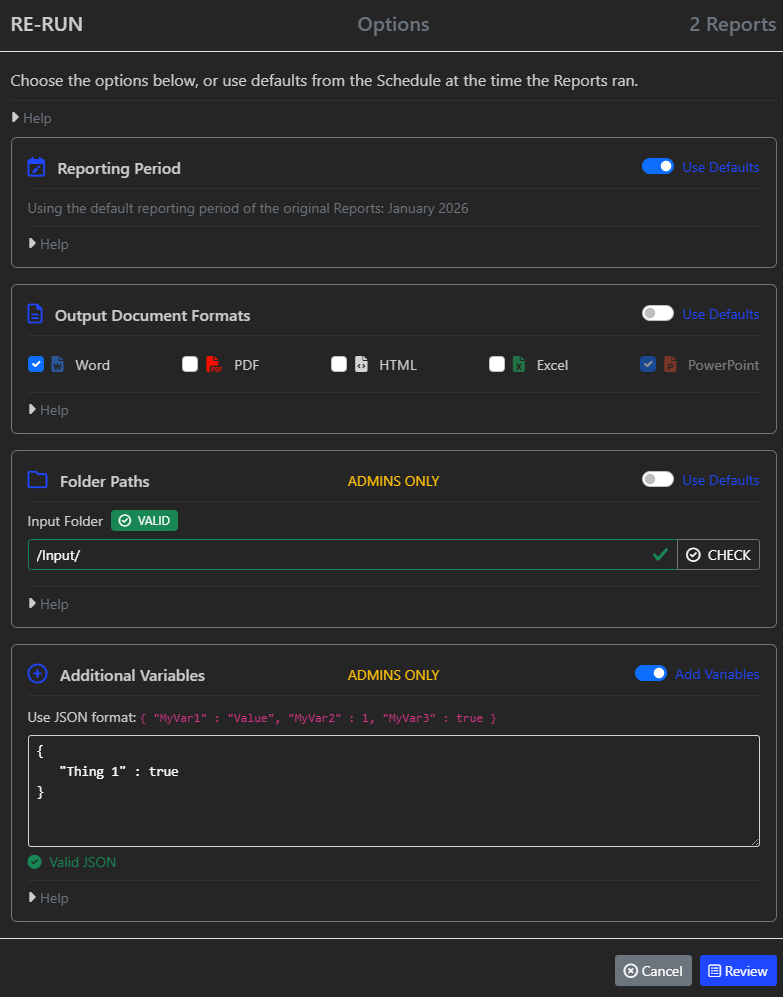
Clicking Re-Run opens a purpose-built dialog with four sections, each with sensible defaults:
Reporting Period
By default, re-runs use the same reporting period as the original batch. Need to target a different month? Toggle off “Use Defaults” and pick from the last 12 calendar months.
Output Document Formats
The original output formats (Word, PDF, HTML, Excel) are preserved by default. Override them if you only need, say, a PDF this time. PowerPoint outputs are always generated when the input template is a .pptx file - that’s by design.
Folder Paths (Admins Only)
Admins can redirect the input folder to a different location. A built-in validation button checks the folder exists before you submit. Regular users see the Schedule’s default path.
Additional Variables (Admins Only)
Need to inject extra variables into every re-run job? Admins can paste a JSON object (e.g. { "Debug": true, "Region": "EMEA" }) and it will be merged into the variable set for every Report Job in the batch.
3. Review and Submit
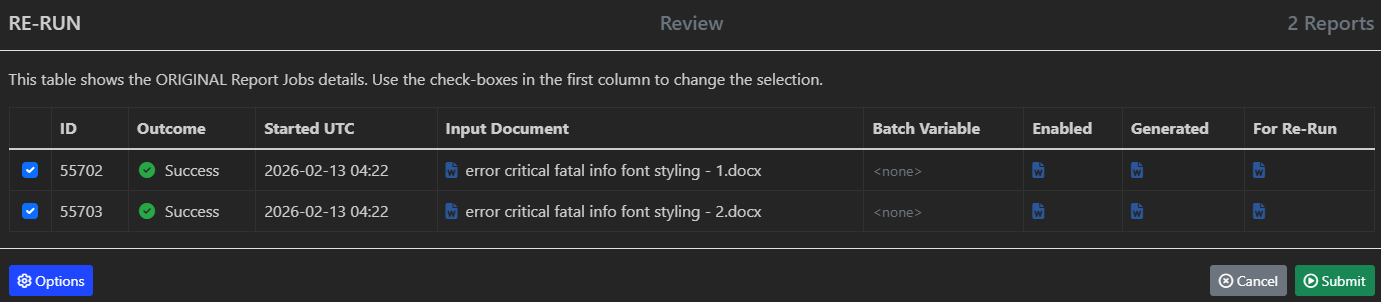
Before submitting, a Review screen shows a table of the selected Report Jobs with:
- The original outcome (so you can see what failed)
- The input document with its file type icon
- The batch variable
- The formats that were enabled, which were successfully generated, and what will be used in the re-run
Deselect any you’ve changed your mind about, then hit Submit. A new Batch Job is created and queued immediately.
4. Track Progress
After submission, a View Progress button takes you straight to the new batch’s progress page (or Ctrl+click to open in a new tab). The original Report Jobs are also updated with a message noting that a re-run was triggered, creating a clear audit trail.
Under the Hood
A few technical highlights for the curious:
-
Variable Preservation - When a Report Job is first created, its variables (excluding
BatchIndexandBatchSize) are serialised to a newInitialVariablescolumn as JSON. On re-run, these are faithfully deserialised and restored, ensuring form inputs, calculated values, and custom variables are all present. -
Backward Compatibility - Older Report Jobs that predate this feature (and therefore lack
InitialVariables) can still be re-run. They gracefully fall back to using only theBatchVariable, and an informational log entry is recorded. -
RBAC Enforced - The re-run respects your existing Schedule permissions. You need execute permission on the Schedule, read access to the input folder, and write access to the output folder. The UI hides the controls if you don’t have the right permissions, and the API double-checks on the backend.
-
BatchIndexandBatchSizeare recalculated based on the re-run list, so macros that depend on batch position work correctly even when you’re only re-running a subset.
When Should You Use It?
- A few reports in a large batch hit a transient error (e.g. an API timeout) and you want to retry just those
- A macro was fixed and you want to re-run only the affected reports
- You need to regenerate specific reports in a different output format
- An admin wants to test with additional debug variables before re-running a full batch
Summary
The ability to re-run Report Jobs transforms how you handle partial failures and selective regeneration. Instead of the all-or-nothing approach of re-running an entire schedule, you now have surgical precision: pick your reports, adjust your options, and get back to business.
This is available now in ReportMagic 4.1 - look for the Re-Run button on any Batch Progress page.
Have questions or feedback? Drop us a message in the community forum.